Silk Mobile
Table of Contents (Homepage)
- Overview
- Setting Up
- Getting Started
- How To
- Connecting Devices And Emulators
- Preparing Applications For Testing
- Managing Applications
- Recording Tests
- Working With Test Commands
- Adding Commands To Your Scripts
- Object Commands
- Click
- ClickCoordinate
- ClickIn
- ClickOffset
- Drag
- ElementGetProperty
- ElementGetTableRowsCount
- ElementListPick
- ElementListSelect
- ElementListVisible
- ElementScrollToTableRow
- ElementSendText
- ElementSetProperty
- ElementSwipe
- ElementSwipeWhileNotFound
- GetAllValues
- GetElementCount
- GetElementCountIn
- GetTextIn
- IsElementBlank
- IsElementFound
- IsFoundIn
- LongClick
- RunNativeAPICall
- SendWhileNotFound
- VerifyElementFound
- VerifyElementNotFound
- VerifyIn
- WaitForElement
- WaitForElementToVanish
- GetCoordinateColor
- DragDrop
- Application Commands
- Device Commands
- Web (Hybrid) Specific Commands
- Utilities Commands
- Monitoring Commands
- Configuration Commands
- ExtractLanguageFiles
- SetDefaultClickDownTime
- SetDefaultTimeOut
- SetDefaultWebView
- SetDragStartDelay
- SetInKeyDelay
- SetKeyToKeyDelay
- SetLanguage
- SetLanguagePropertiesFile
- SetShowImageInReport
- SetShowPassImageInReport
- SetShowReport
- SetSpeed
- SetThrowExceptionOnFail
- SetWebAutoScroll
- StartStepsGroup
- StopStepsGroup
- TextFilter
- Miscellaneous Commands
- Controlling Element Identification Rules
- Editing Test Objects
- Executing Test Scripts
- Report Of Executed Test
- Working From Code Environment
- Continuous Integration
- Layout Verification Tests
- Use Device Vitals Monitors
- Troubleshooting
- Terminology
Manually Instrumenting iOS Applications
(Optional)
Note: U se this process only if you can't use the iOS Application Instrumentation because you don't have an iOS certificate or provisioning profile.
We provide three instrumented iOS demo applications (the links, below, can be opened only from iOS devices):
-
EriBank can also be found under installation folder: <install dir>\bin\ipas (activity name: com.experitest.ExperiBank)
-
QuickContactsTest (activity name: com.experitest.QuickContacts)
-
UICatalogTest (activity name: com.experitest.UICatalogTest)
-
Browser - We also provide an instrumented browser application, SimpleBrowser, for web testing using the Web identification method: (activity name: com.experitest.browser)
Instructions for Your Developer
The following instructions should be transmitted to your developer, working with a MAC station and iOS device, so that the application can be prepared for testing. This preparation needs to be performed only once for the application.
Step 1: Open your project in Xcode
Step 2: Duplicate the target (note: when asked about the new Duplicate Target choose “Duplicate Only”
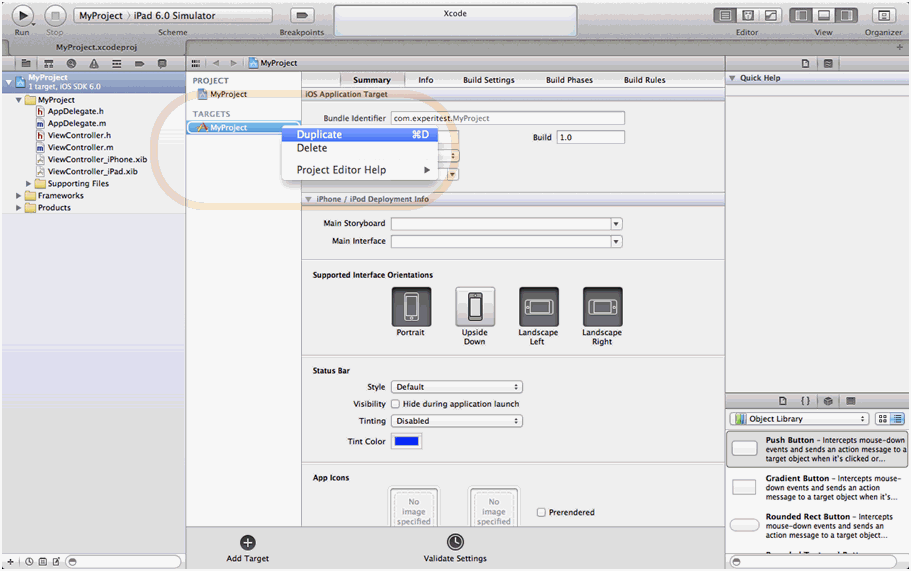
Step 3: Rename duplicated target (optional)
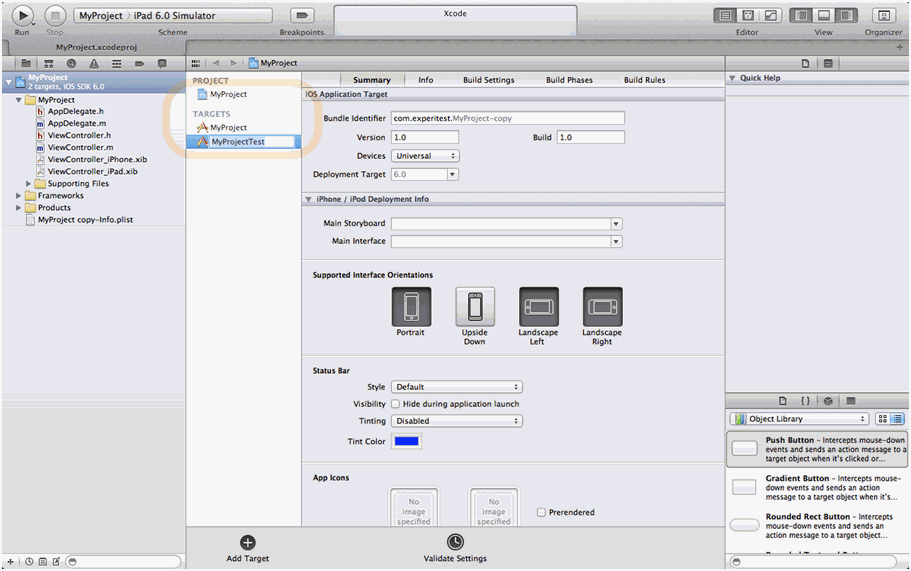
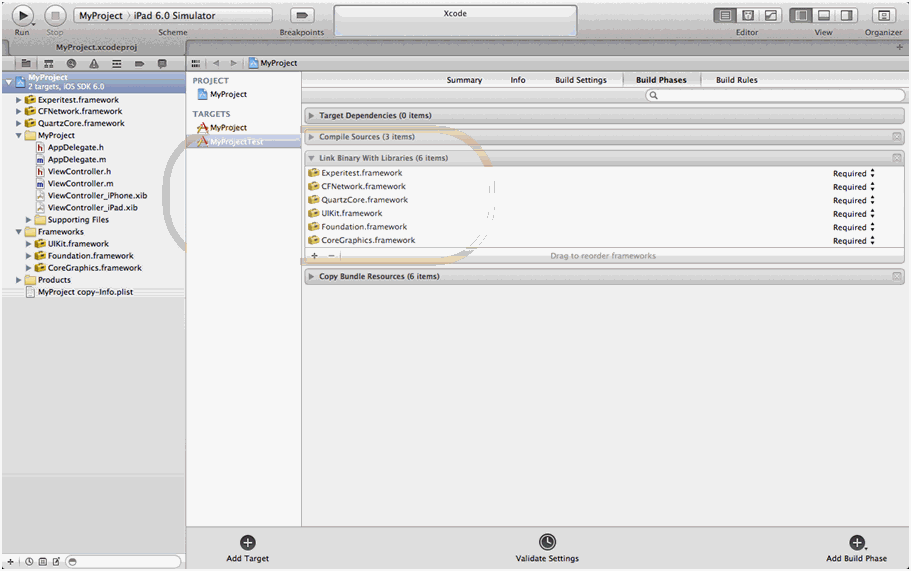
Step 4: Select duplicated target -> Go to build phases -> Select + in Link Binary With Libraries section.
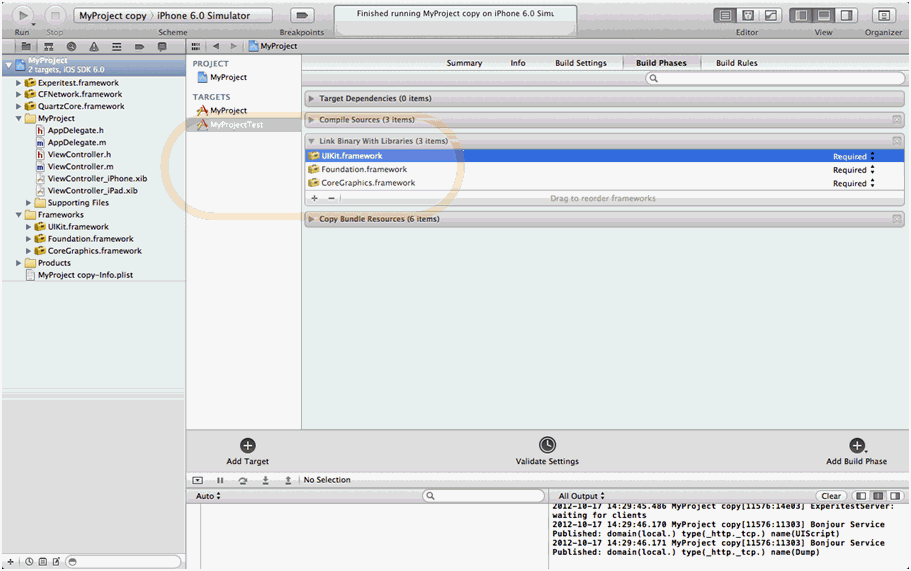
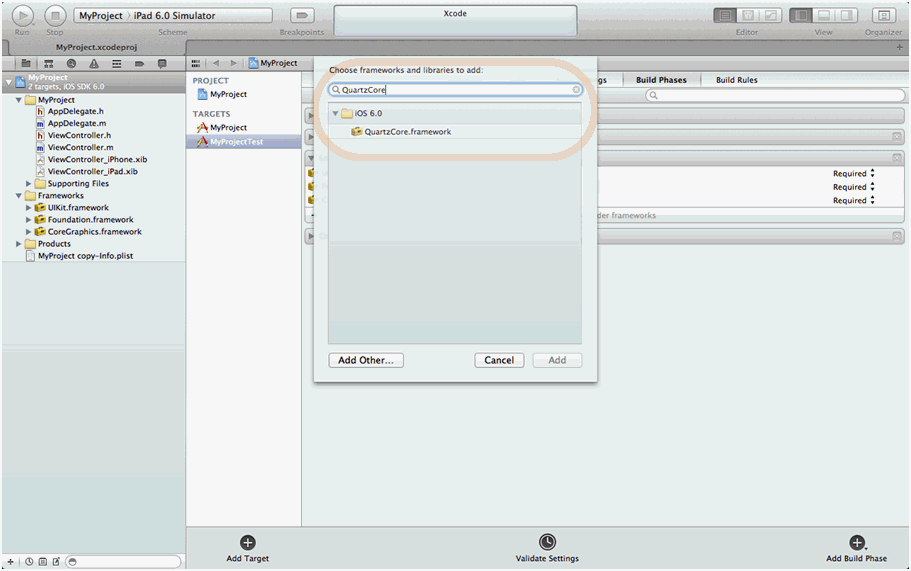
Step 5: Search for QuartzCore.framework -> Press Add to link it.
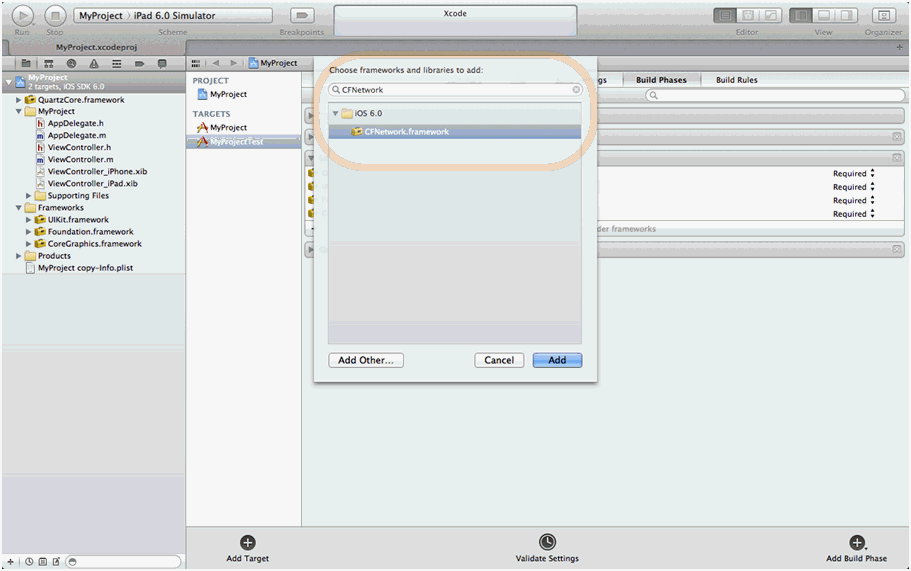
Step 6: Search for CFNetwork.framework -> Press Add to link it.
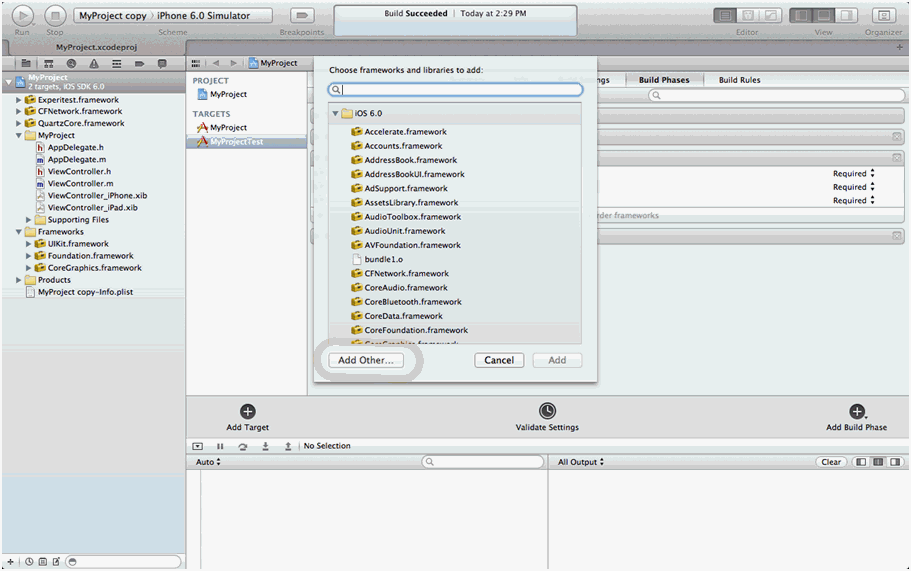
Step 7: Press Add Other
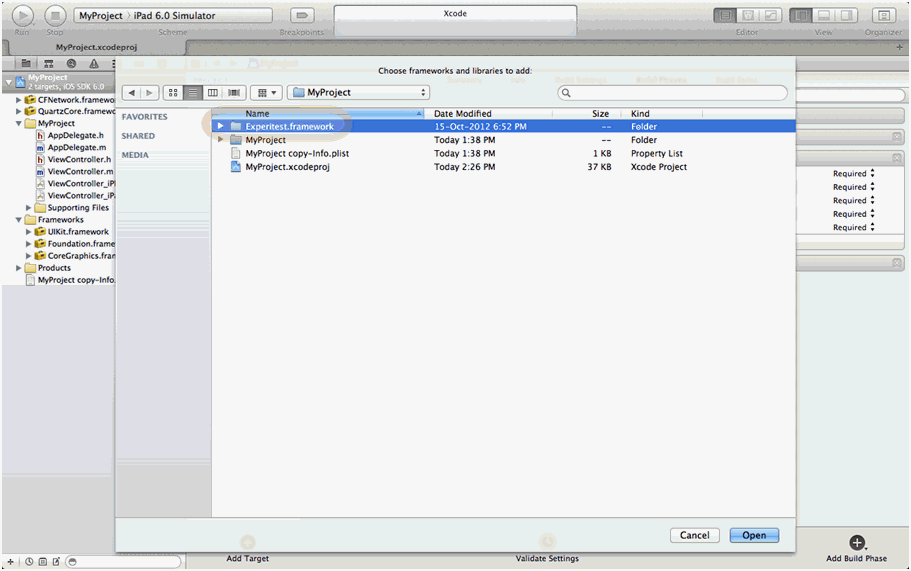
Step 8: Locate Experitest.framework -> Press Open to link it.
Note: Only open the file Experitest.framework.zip on a Mac machine. Opening it on Windows and copying it to Mac machine result in problems with instrumentation.
Step 9: Final View : Build Phase -> Link Binary With Libraries
Note: When updating the Silk Mobile framework update, make sure framework does not get removed from the linked libraries.
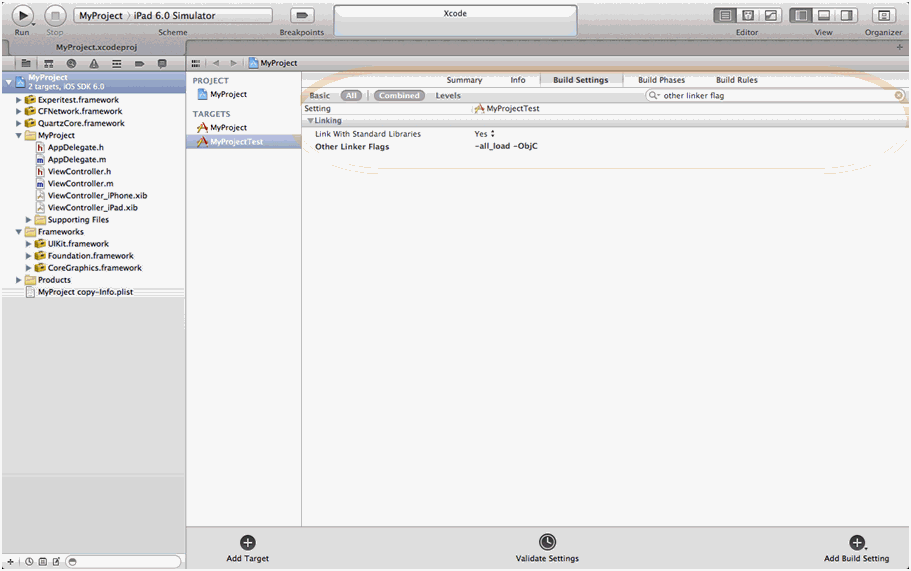
Step 10: Go to Build Settings -> Search "other linker flag" -> Add following linker flags:
-
-all_load
-
-ObjC
-
Step 11: Final View : Build Settings -> Other Linker Flags
Note: At time of Silk Mobile framework update, please make sure linker flags do not change for the duplicated build settings.
Step 12: Switch to the duplicated target and deploy the application.
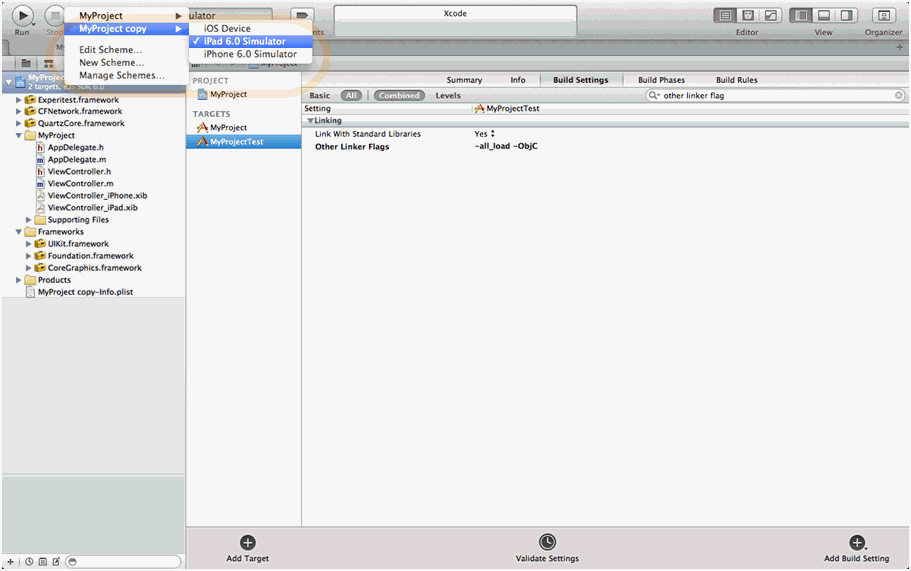
Step 13: Switch between the targets to run with and without the Experitest server.
Step 14: Register the Custom URL Scheme (so that the iOS Bridge will work).
-
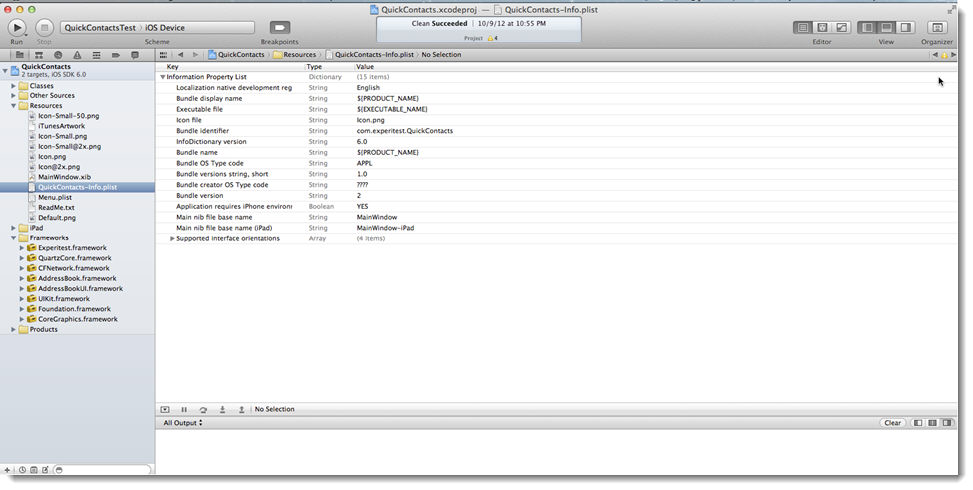
In the Project Navigator, expand the Supporting Files group and open the Project-Info.plist file.
-
You can add a new row by going to the menu and clicking Editor > Add Item. Set up a URL Types item by adding a new item.
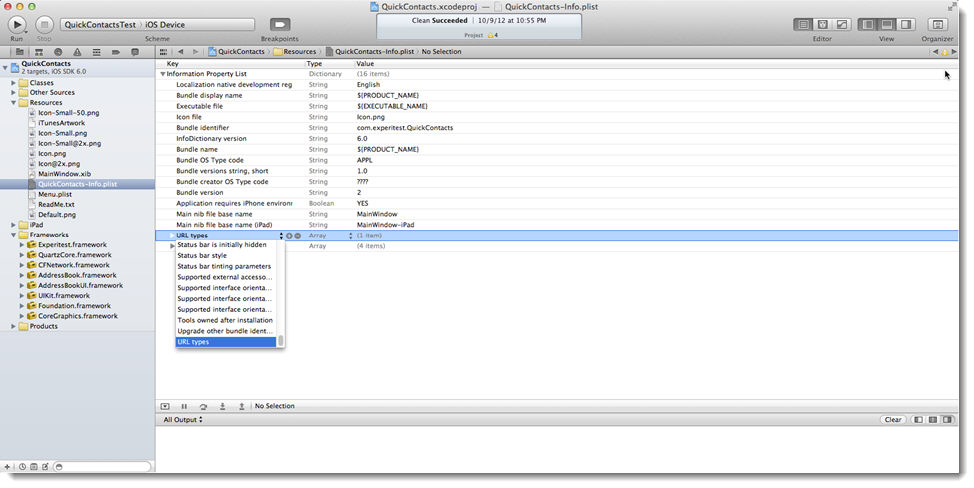
-
Expand the URL types key, expand item 0, and add a new item, "URL schemes".
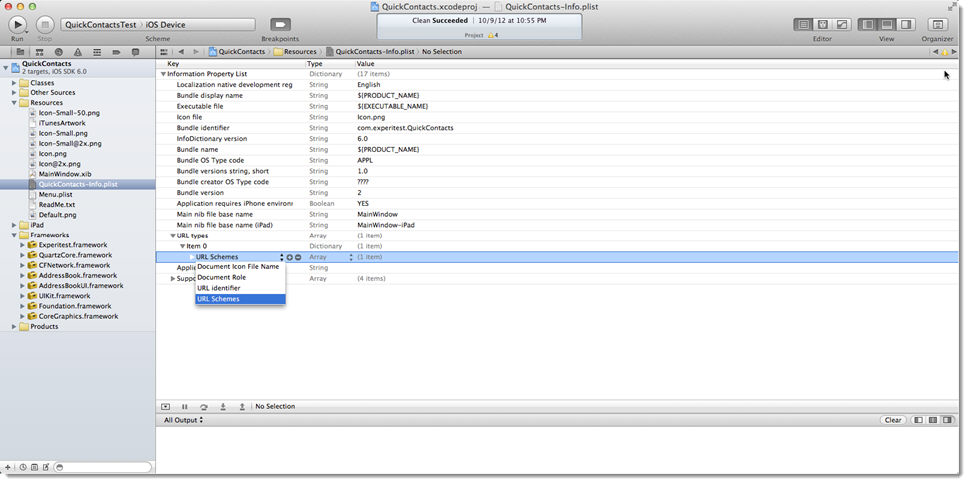
-
Fill in a string value for item 0 of "URL schemes". This value needs to be unique. For example, the app's activity name. The iOSBridge will open and close the application by this value. It should be a unique and a known name (is recommended that it will be the bundle identifier).
-
Fill in your company identifier for the "URL identifier" (you can use any string, it will not be used later).
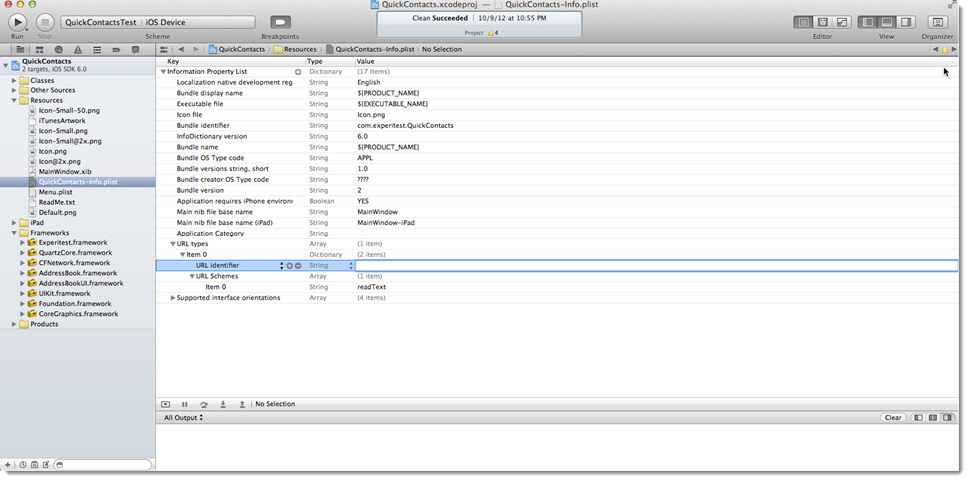
Step 15: Verify that the instrumentation is working correctly.
Launch the application in a simulator. There are two signs that the instrumentation was successful:
-
In the simulator log you should be able to identify the following line: <Warning>: ExperitestServer: waiting for clients
-
When launching the application you should see the following splash screen: